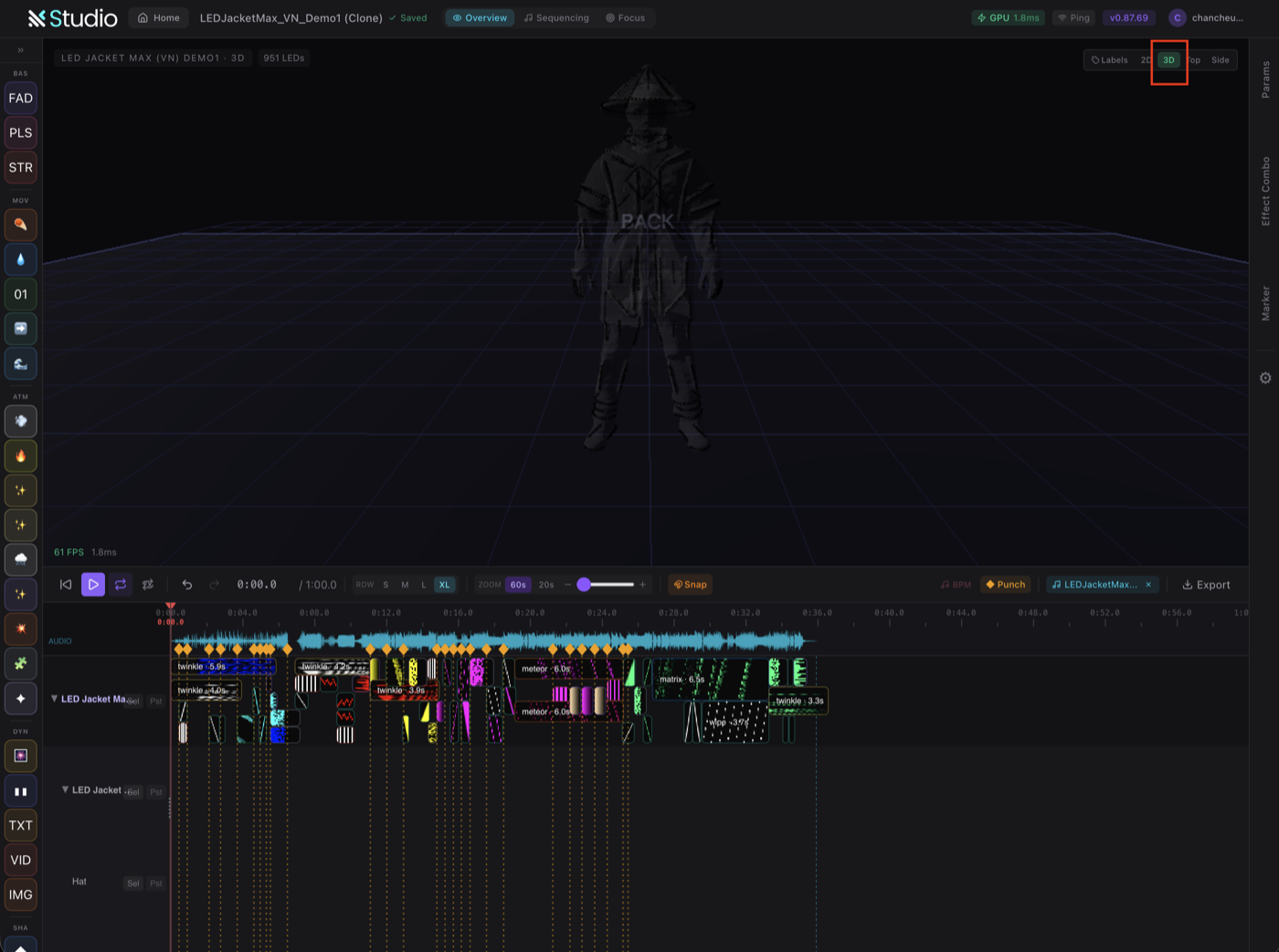
LDP Studio is the browser-based design software for LED dance costumes and props. No install, no blank canvas — clone a ready-made demo and you’re editing a working light show in seconds. Here’s the whole path in eight steps, from sign-in to export.
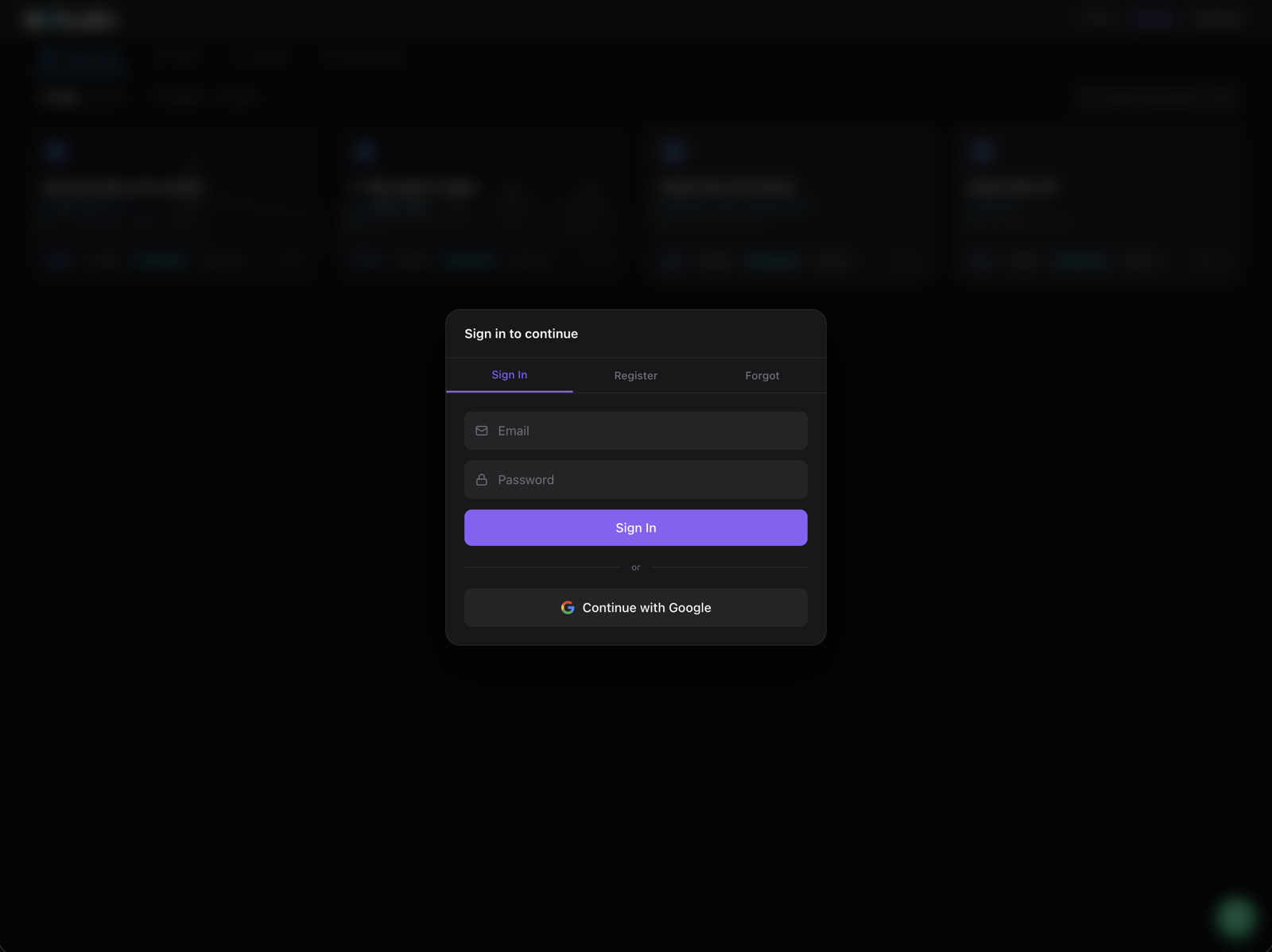
Step 1. Sign in
Open studio.lightdancepro.com and sign in with email or Continue with Google. Your account keeps your demos, previews, and sequences in one place.
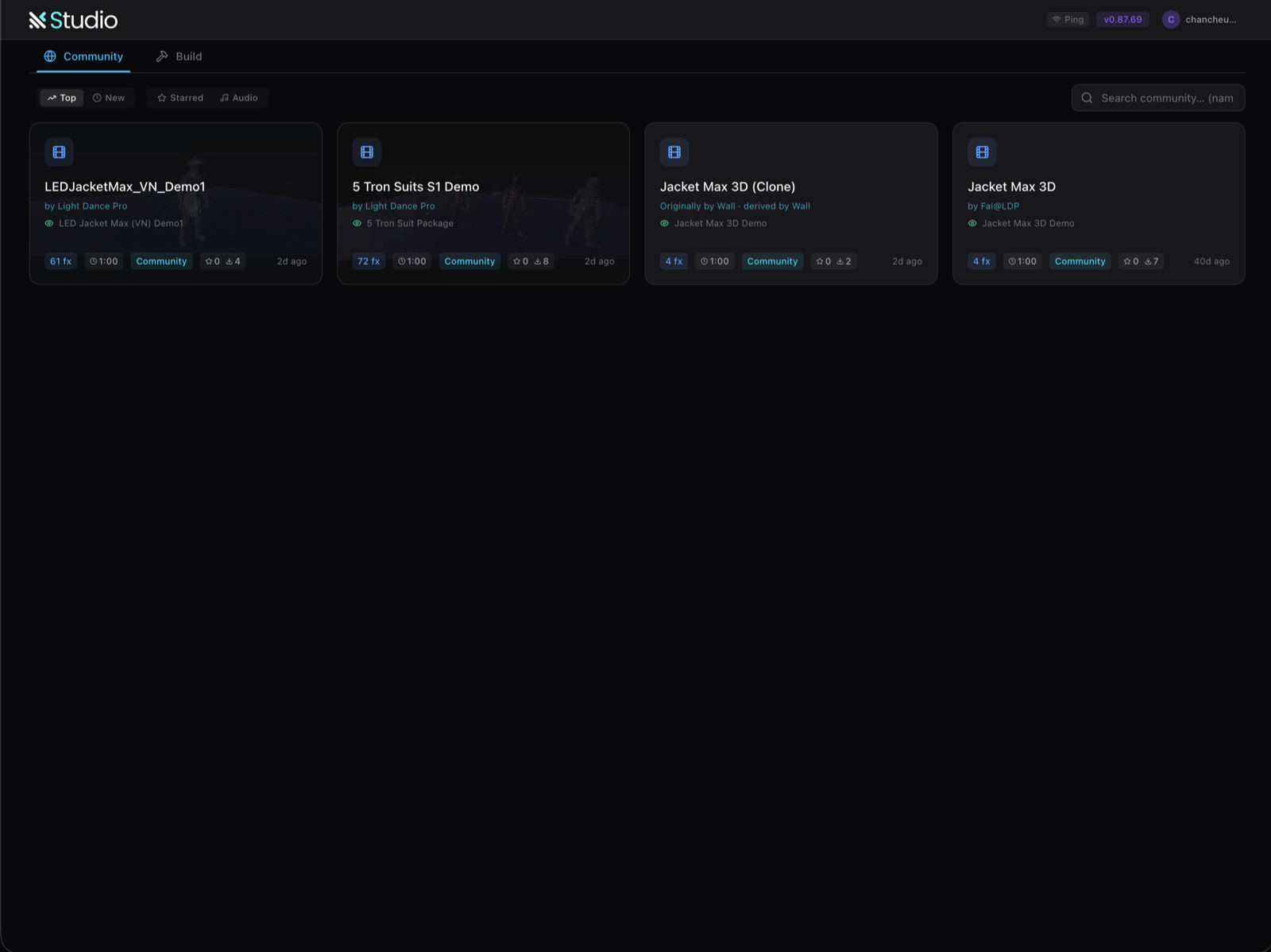
Step 2. Browse the Community library
The Community tab is a library of ready-made shows. Each card shows the effect count, run time, and downloads — sort by Top, New, Starred, or Audio to find one you like.
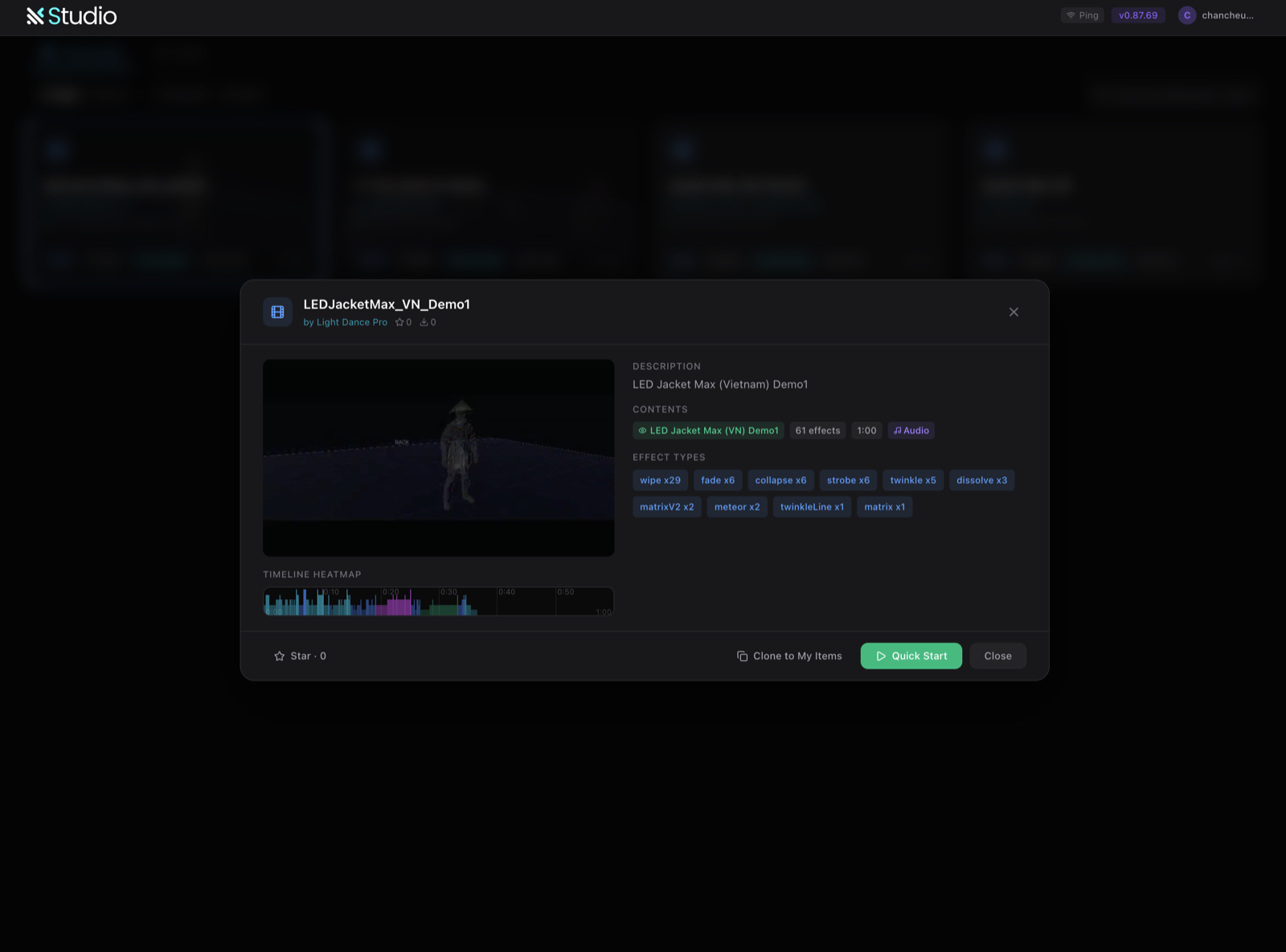
Step 3. Hit Quick Start
Open a demo to see its effects and timeline, then press the green Quick Start button.
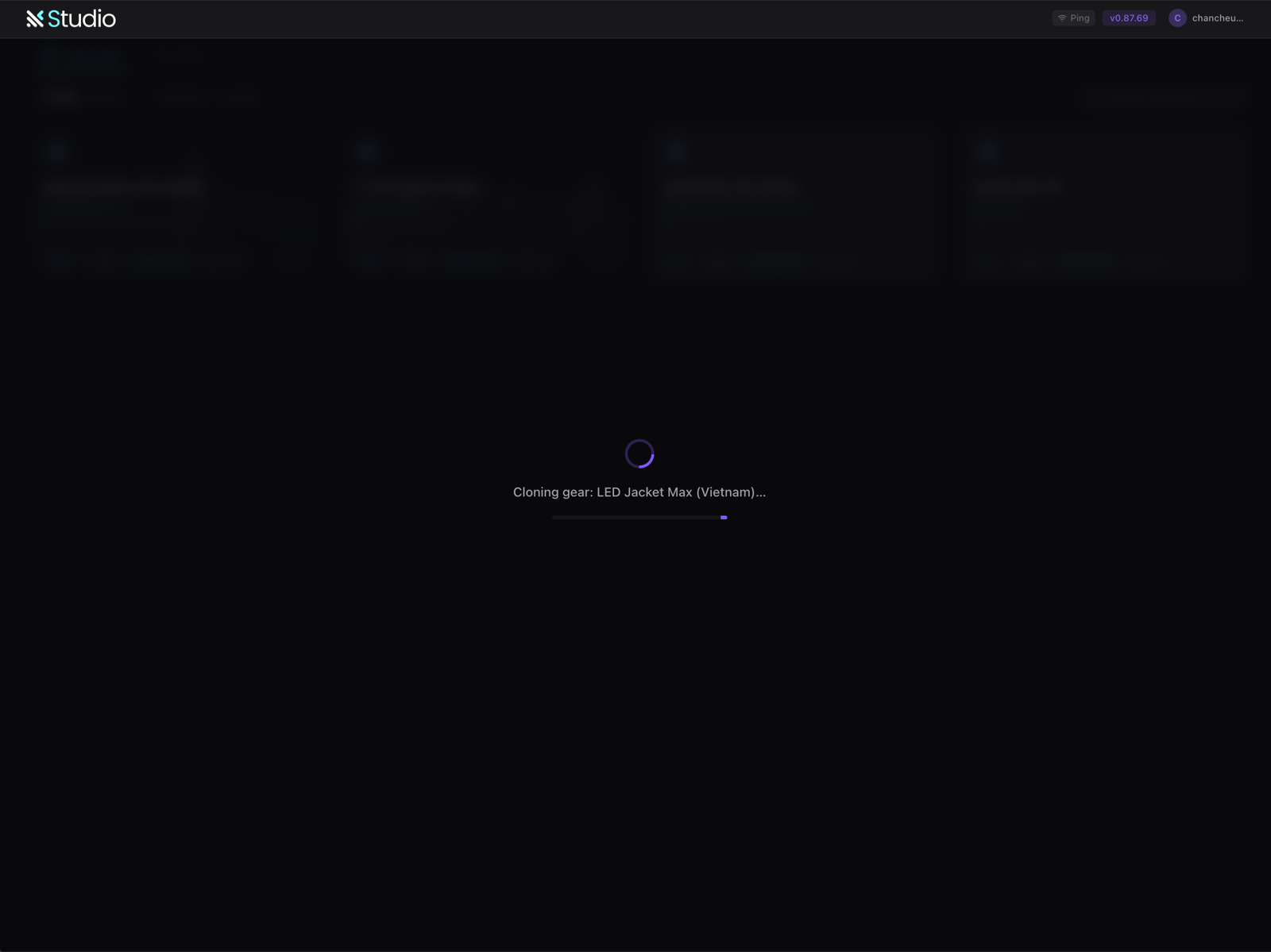
Step 4. Let it clone
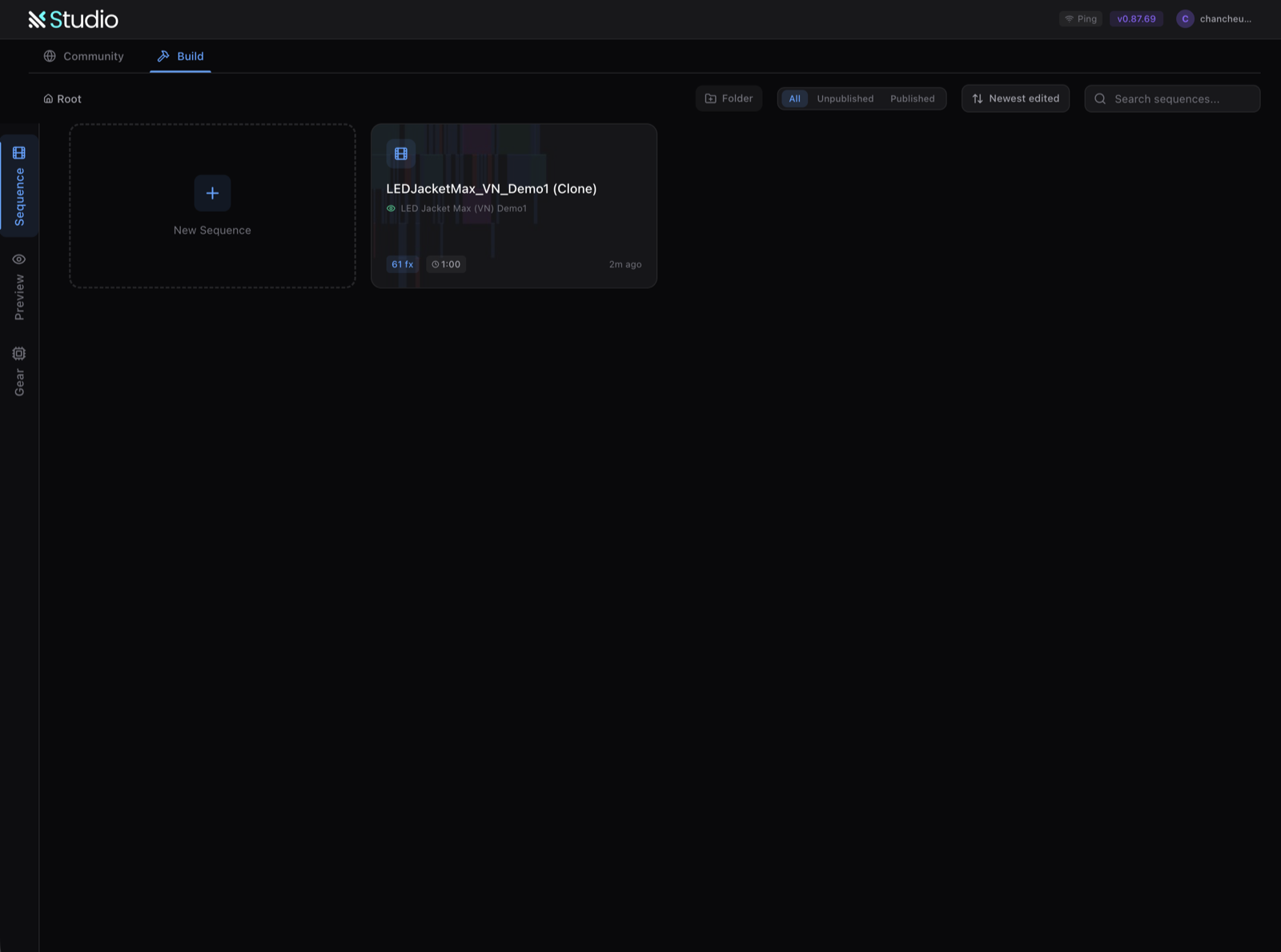
Studio copies the gear (e.g. LED Jacket Max — 951 LEDs) and the full sequence into your account.
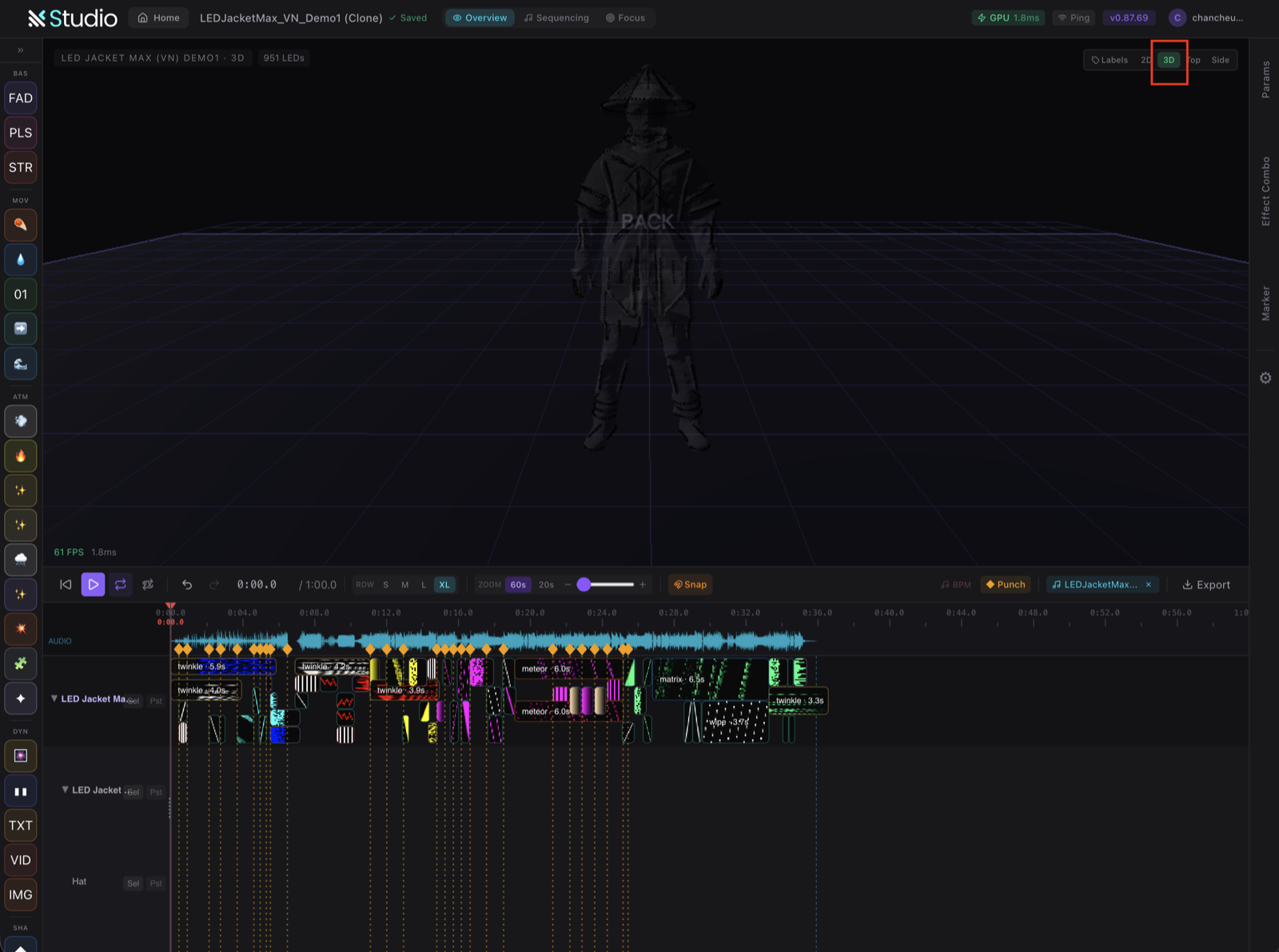
Step 5. Explore the editor
The show opens ready to edit: effect palette on the left, a live 2D/3D preview in the middle, and the timeline synced to the audio below. Press play to watch it run.
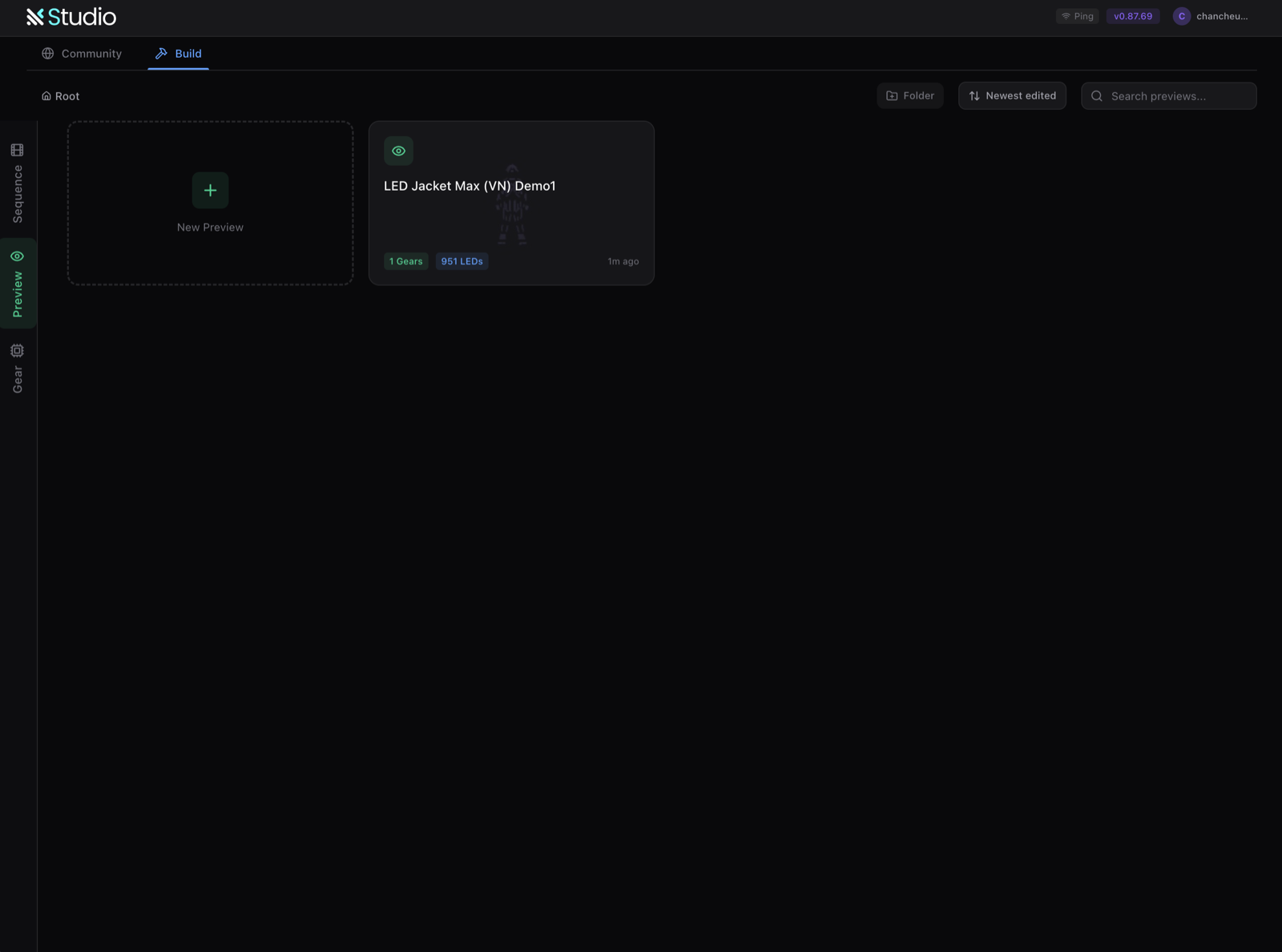
Step 6. Create a Preview
A Preview is your virtual stage. Go to Build → Preview → New Preview to start one.
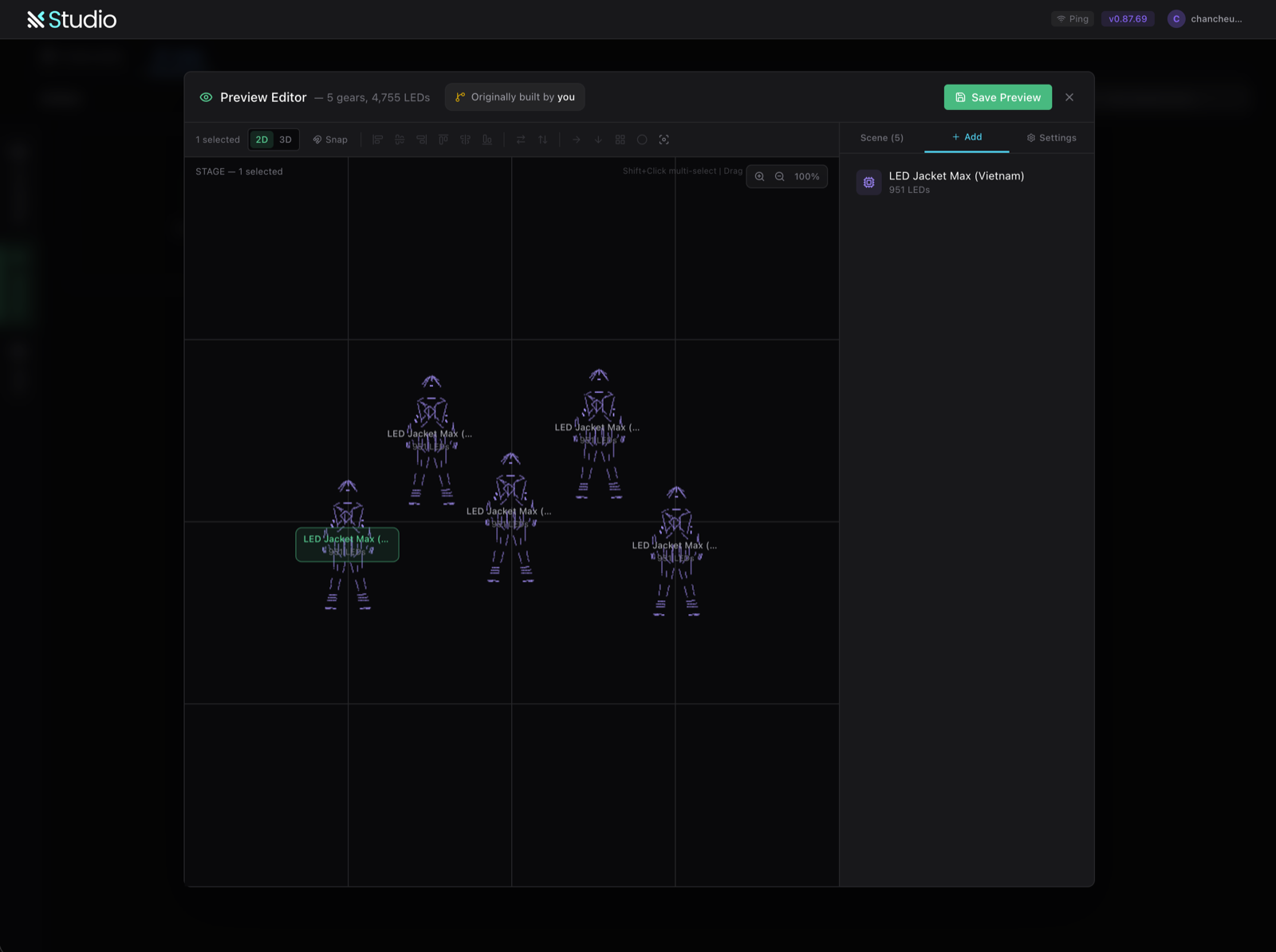
Step 7. Add gear to the stage
Use Add to place performers and build your formation — five suits is 4,755 LEDs lighting up together. Arrange them, then Save Preview.
Step 8. Build and export
Fine-tune the effects under Build → Sequence, then Export to send it to your LDP controller or player — and your real costumes light up in sync.
FAQ
Do I need to install anything? No — LDP Studio runs entirely in your browser at studio.lightdancepro.com.
Fastest way to a first show? Quick Start any Community demo — it clones a complete, editable show in seconds.
How do my costumes light up? Export the sequence and load it onto your LDP controller or player.
Ready to build? Open LDP Studio and Quick Start your first demo — or browse the gear it’s made for.

